Bitmap Effect for Affinity
The famous bitmap effect, fully vector and in one click. Select a text, a logo or an image and the script turns it into dithered pixels that follow a gradient or the image tones. You get a single curve: recolor it, scale it and edit it like any other.
Free, with your Visual.af account.Your Visual.af account takes two clicks with Google.
 NewFree
From five steps to one
The usual trick takes a gradient, rasterizing, bitmap mode, tracing and expanding. Here you select, adjust and accept.
Select
A text, curves, shapes, a group or an image. Several objects at once work too.
Adjust
Pick the algorithm, cell size, shape and where the tone comes from. You see it live on the canvas, with the original hidden meanwhile.
Accept
You get a “Bitmap Effect” layer on top with a single compound curve. The original is hidden (not deleted) and one undo brings everything back.
Six ways to dither
Four algorithms and three cell shapes, in any combination. Every image on this page was drawn by the script.

Floyd-Steinberg
The classic error diffusion, the look of 1-bit images.

Atkinson
The one from the original Macintosh: more contrast and more air between pixels.

Bayer
An ordered, regular pattern, in 2×2, 4×4 or 8×8.
Noise
Random pixels, like a mezzotint. The seed changes the layout.

Circles
One dot per cell. With Bayer 8×8 it looks like a print halftone.
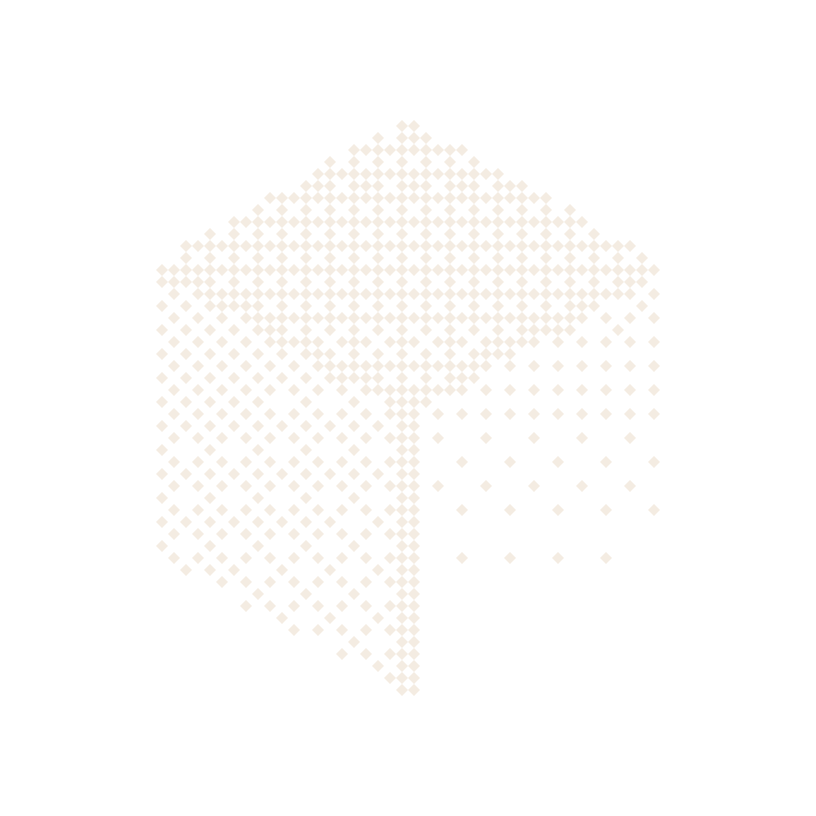
Diamonds
Diagonal dots that touch at their tips.
The tone comes from where you choose
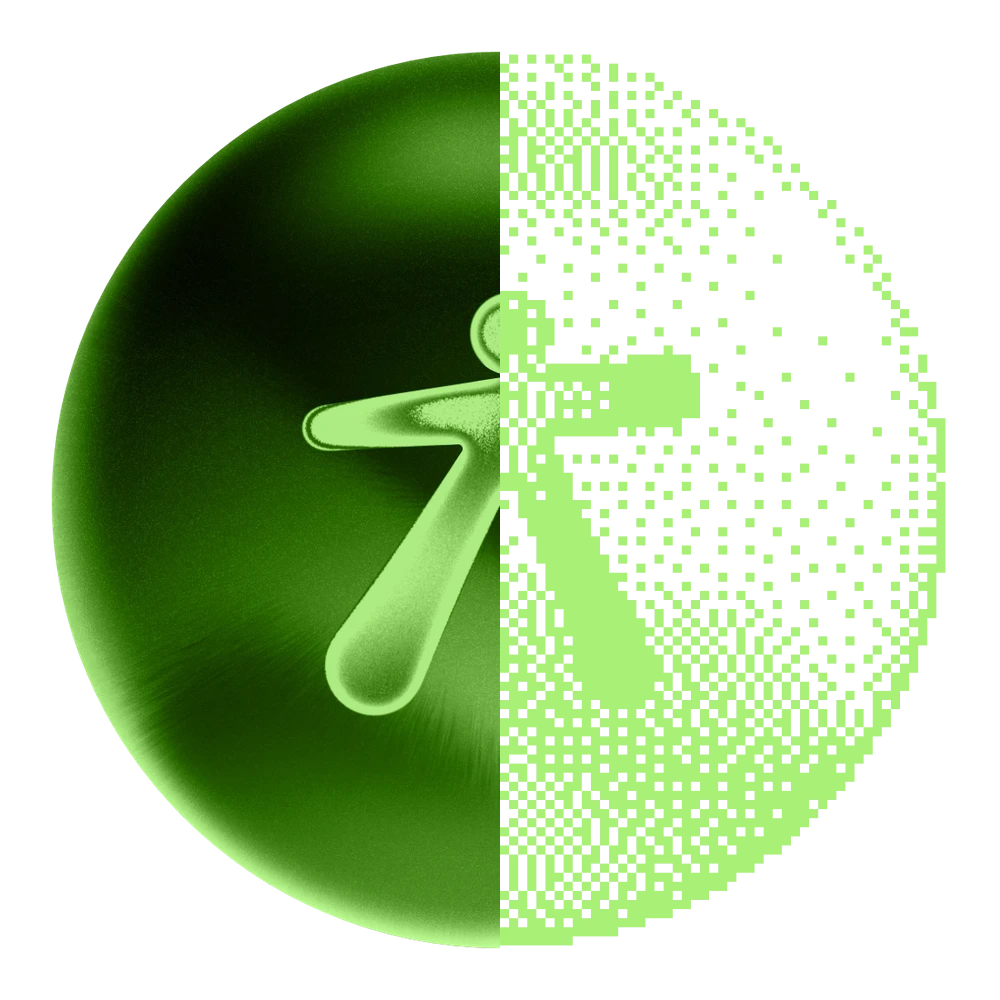
A linear or radial gradient you define, the image tones, or both multiplied. Here, on the Visual.af sphere.

Gradient
Linear or radial, with angle, start and end density and midpoint.

Image tones
Darker areas fill up more. Auto levels stretch a dull photo.

Image × gradient
The image tones fade out along the gradient.
A single curve
Neighboring squares merge into one shape, with no seams or extra nodes. It scales without losing sharpness and changes color in one click.
Live preview
Every change shows up on the canvas instantly, even with 1 px cells.
Text, logo or image
Text and curves are measured by their exact outline; images, by their opaque pixels.
Free
No payments, no watermarks. You only need a Visual.af account to download it.
In five languages
The dialog comes in English, Spanish, Portuguese, Japanese and Indonesian.
Works offline
It doesn’t use the internet or touch your files: everything happens inside Affinity.
Bitmap Effect
Every control
A single dialog, with live preview.
- Algorithm
- Bayer 2×2, 4×4 or 8×8, Floyd-Steinberg, Atkinson or noise.
- Cell size
- The side of every pixel, in document pixels. It starts at a value that suits your selection.
- Cell shape
- Squares that merge, circles or diamonds, with their size relative to the cell.
- Tone source
- Gradient, image tones or image × gradient.
- Gradient
- Linear or radial, with angle, start and end density and midpoint.
- Auto levels
- Stretches the image tones: the lightest area ends up empty and the darkest, full.
- Invert
- Flips the gradient or the tones.
- Color and original
- The color of the pattern and whether the original stays hidden.
Install
Installs in a minute
Every script installs the same way: import it once and it stays in the Affinity script library.
Download the script
Sign in with your Visual.af account, pick the dialog language and download the .afscripts file.
Import it into Affinity
Open Window › Scripting › Scripts Library and use Import Scripts… from the panel ▾ menu. It shows up in the Visual.af category.
Select and run
Select a text, a logo or an image and click Bitmap Effect. The first time, Affinity asks you to confirm you trust the script.
What it adds
A “Bitmap Effect” layer above your selection with a single compound curve. The original stays hidden, not deleted, and one undo brings everything back.
Requirements
Affinity 3.3 or later, on Windows or macOS. They don’t use the internet or touch your files: everything happens inside Affinity.
Frequently asked questions
What is the bitmap effect?
A gradient or an image turned into single-color dithered pixels, like 1-bit images. With Bitmap Effect it comes out straight as vectors, in one step and with a preview, with no rasterizing or tracing.
Does it work with photos?
Yes. Select an image or a pixel layer and the script uses its tones: darker areas fill up more. Transparent areas stay out, so a cut-out image keeps its silhouette.
Can I use the gradient of my shape?
Yes. With “Image tones”, a shape with a gradient fill is dithered following its own gradient, like the original trick.
How large can it go?
The grid goes up to 250,000 cells. If your selection needs more, the script enlarges the cell and tells you at the bottom of the dialog.
Is it free?
Yes. You only need a Visual.af account to download it.
Which Affinity versions does it work with?
Affinity 3.3 or later, on Windows and macOS, with scripting enabled in the Affinity settings.