CRT for Affinity
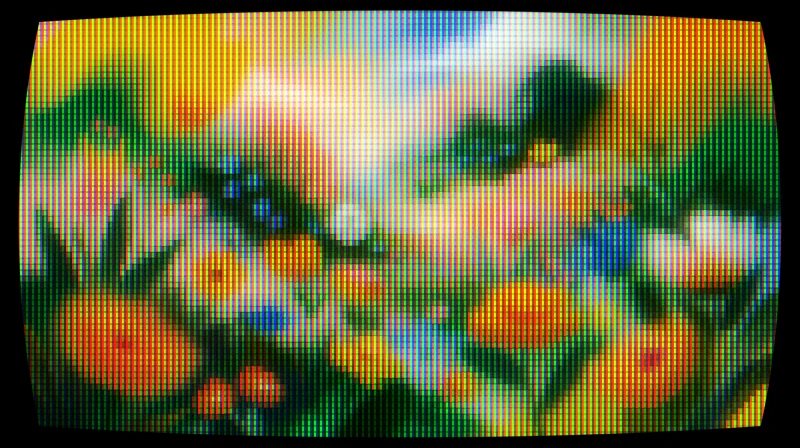
Turns any layer into a tube screen: curvature, RGB phosphors, scanlines and bloom.
Select your logo and the script draws its construction grid: guides on every stem and curve peak, the circles hidden in its curves, the outline, the anchors and the handles. Each part goes on its own layer, ready for your case study.
Free, with your Visual.af account.Your Visual.af account takes two clicks with Google.

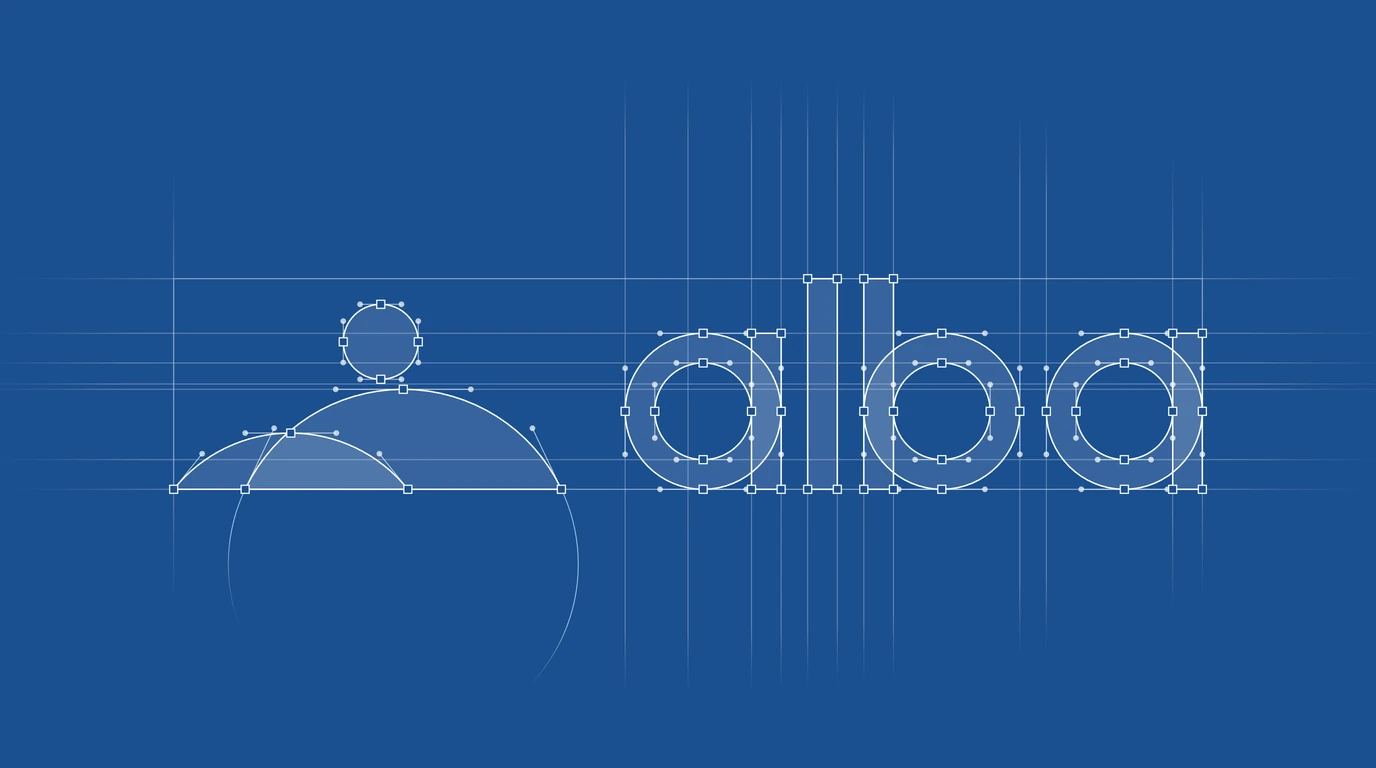 BeforeAfter
The best-known logo grid plugins are made for Adobe Illustrator and charge a yearly subscription. Logo Grid is made for Affinity and costs nothing.
| Plugin | Runs in | Price |
|---|---|---|
 Logo GridVisual.af Logo GridVisual.af | Affinity 3.3 or later | Free |
| Grid itAkrivi Studio | Adobe Illustrator | USD 99 per year |
| GridMe ProGridMe | Adobe Illustrator | USD 50 per year or USD 5 per month |
Prices as published on each plugin’s website in September 2026, before tax.
The grid goes into a “Logo Grid” group above your logo, one layer per part. Try the buttons: they show and hide each layer the way the Layers panel does in Affinity.

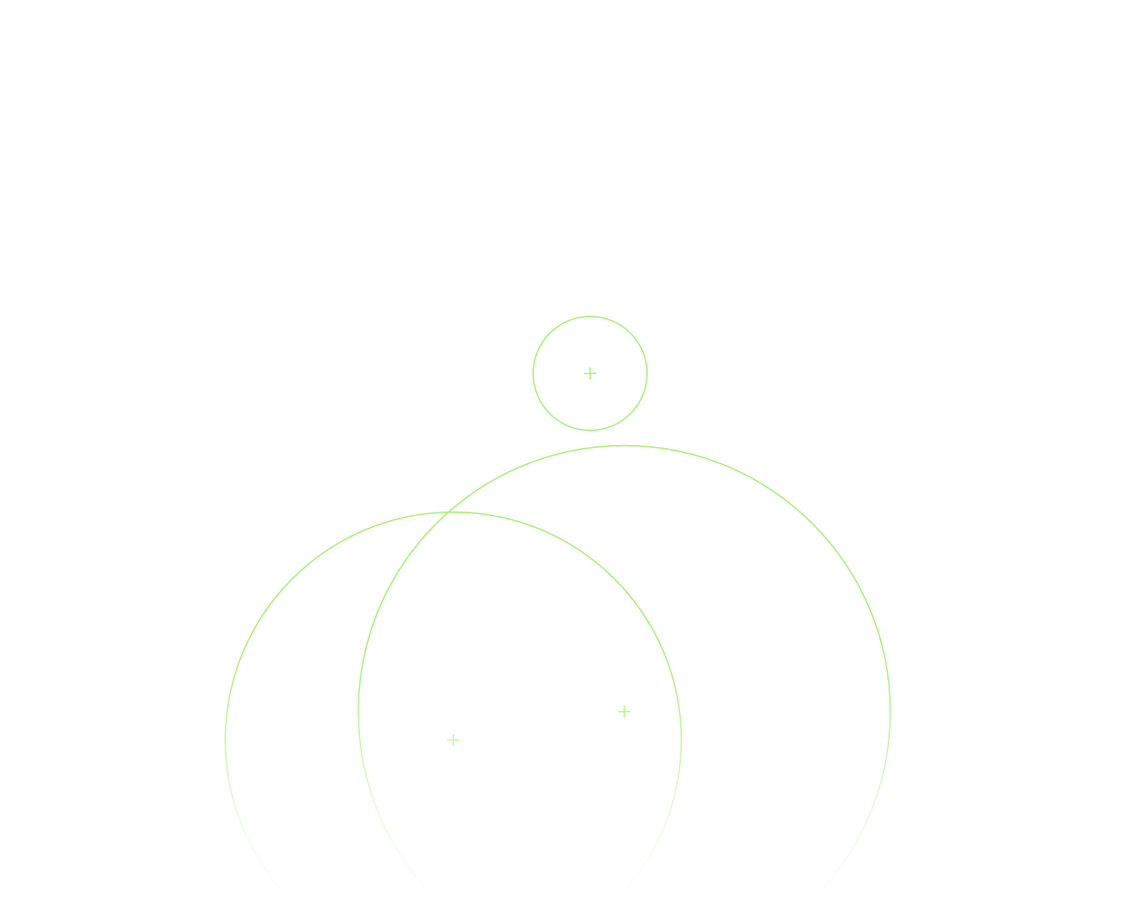
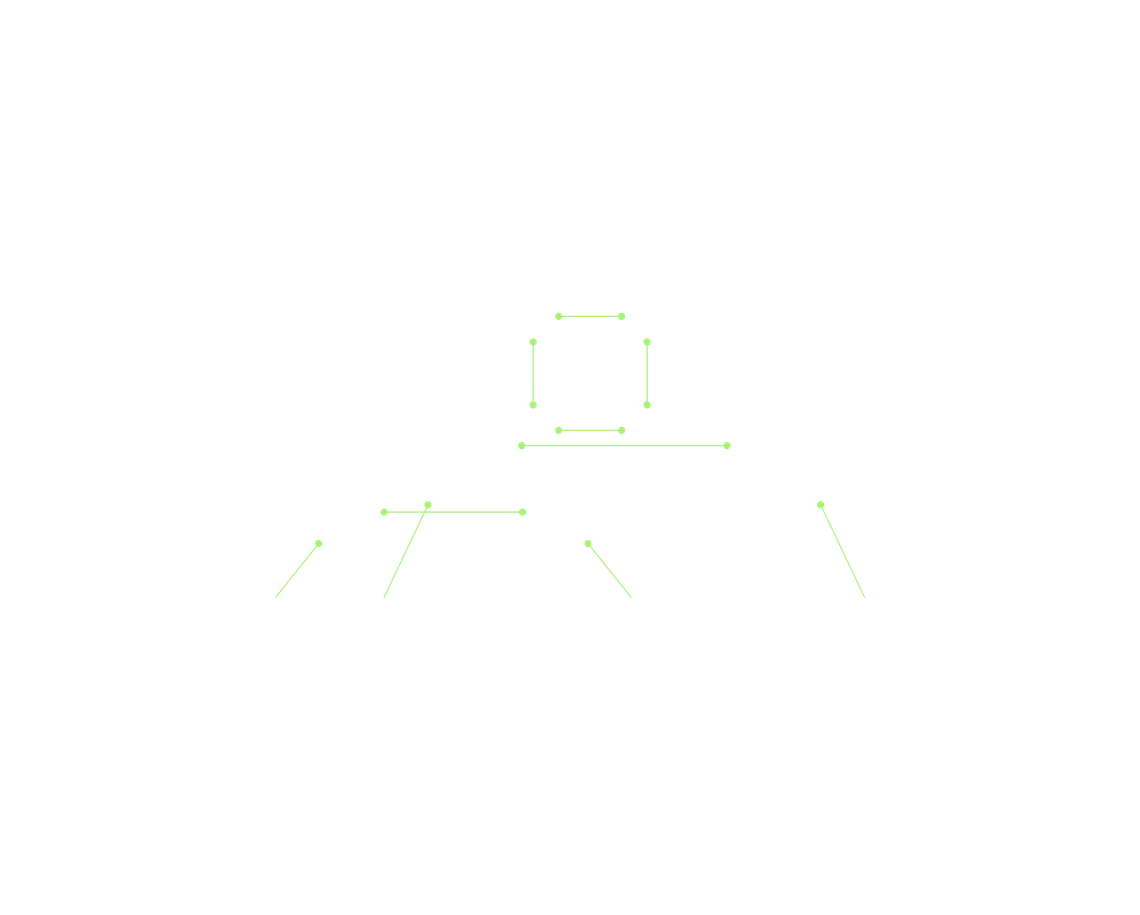
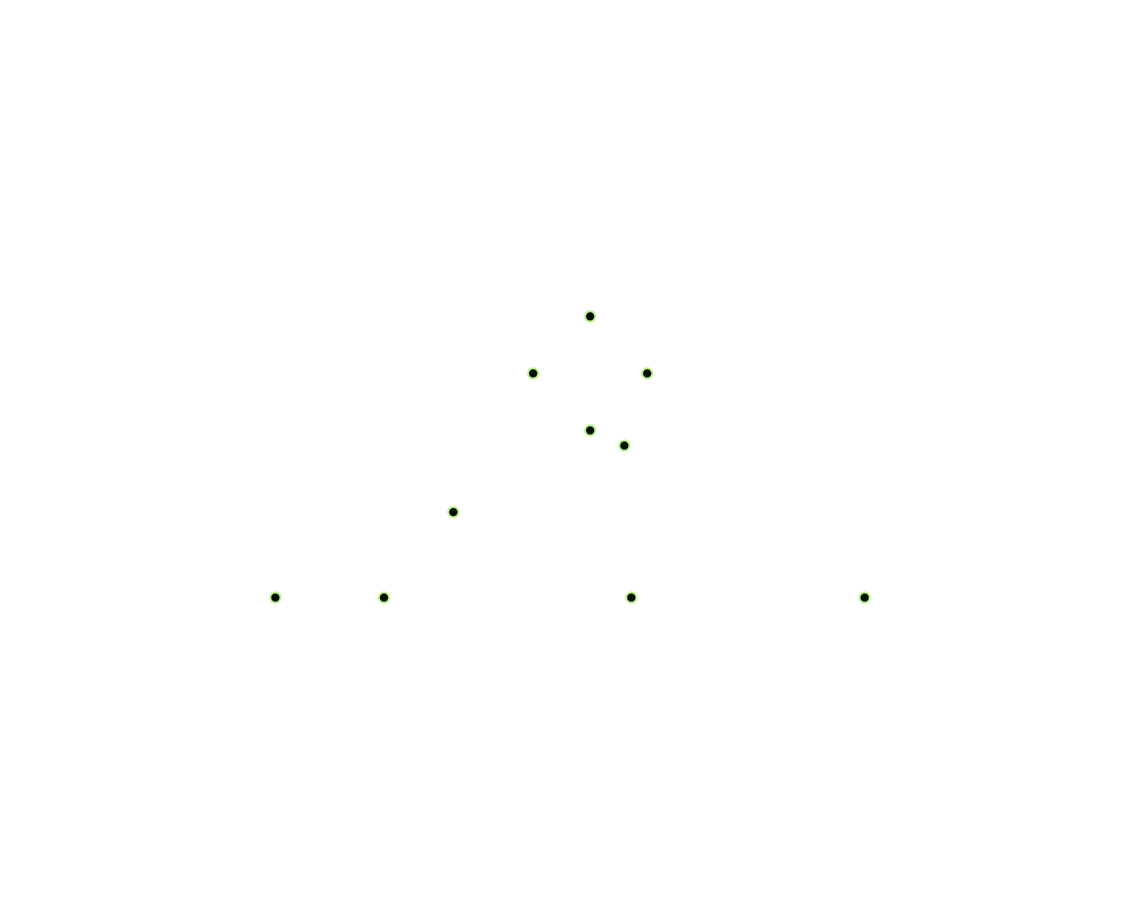
Pick one in the dialog and adjust from there. Every color, stroke and size can still be changed.
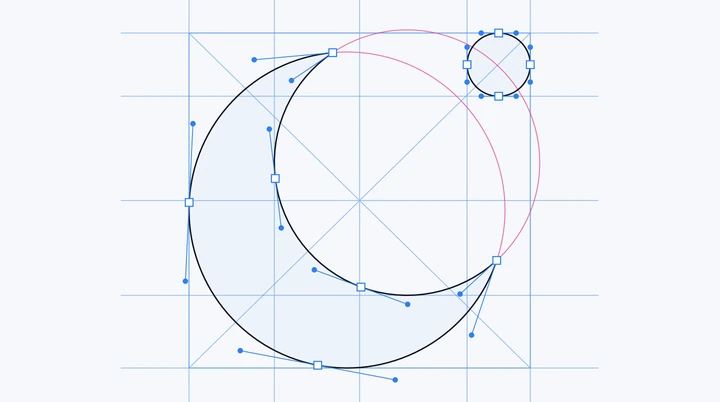
Blue guides, pink circles and a pale silhouette. It reads best on white or cream.
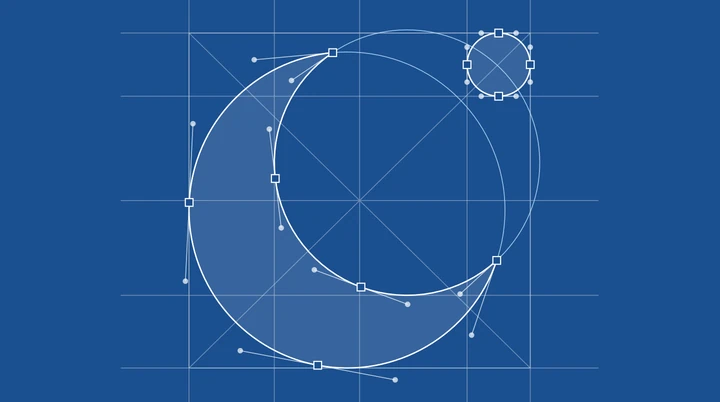
White lines over blueprint blue, with its own background layer, so it looks the same on any document.
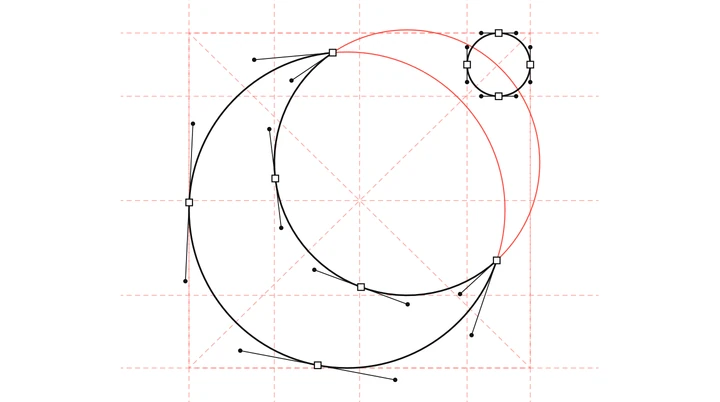
Dashed red guides and red circles over a white silhouette, with black anchors.
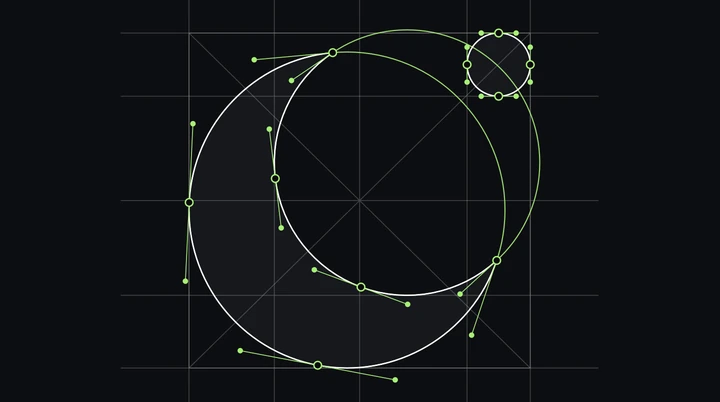
Green lines and round anchors on a dark silhouette, for logos that live on black.
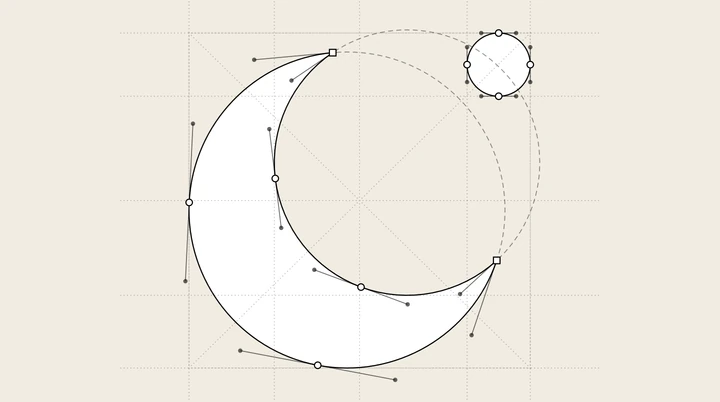
Dotted guides and dashed circles in graphite, like a sketch on paper. Corners get squares and smooth points get circles.
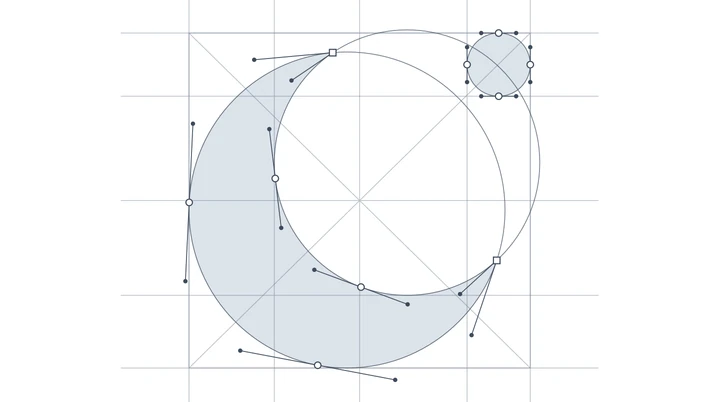
A flat gray shape with fine slate lines and no outline, which keeps the eye on the grid.
Two controls set the amount of detail, and they also work on live text: this wordmark is set in Satoshi and stays editable after the script runs.
15 guides
8 circles
Both sliders move on their own. Grab one to try it yourself.
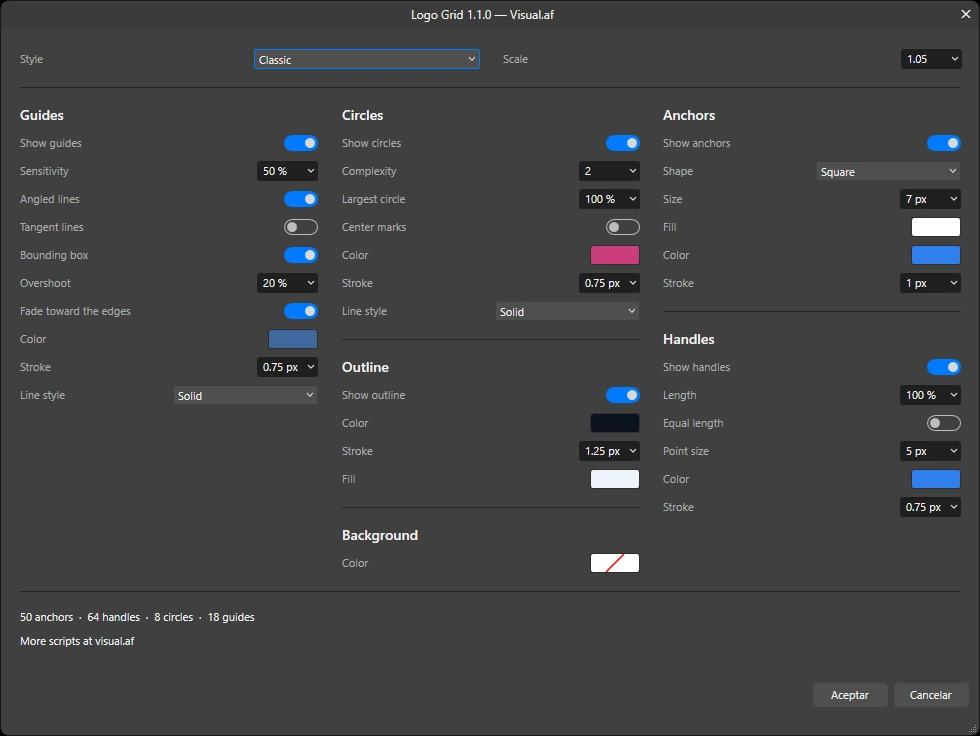
The dialog has three columns, a live preview on the canvas and a running count of the anchors, handles, circles and guides it is about to draw.
Install
You import it once into Affinity’s script library, then run it from the Scripts panel whenever you need a grid.
Choose the dialog language, sign in with your Visual.af account and download Logo Grid (.afscripts).
Open Window › Scripting › Scripts Library and use Import Scripts… from the panel’s ▾ menu. Logo Grid appears in the Visual.af category.
Select the curves, shapes, text or group of your logo and click Logo Grid. The first time, Affinity asks you to confirm that you trust the script.
A “Logo Grid” group above your logo with one layer per part. Your logo isn’t changed, and two undo steps remove the grid.
Affinity 3.3 or later, on Windows or macOS. The script doesn’t use the internet or touch your files: everything happens inside Affinity.
It’s the set of lines, circles and nodes that shows how a logo is built: which curves share a circle, where the stems line up and how the proportions repeat. Designers use it to refine a mark and to explain it in case studies.
Import Logo Grid once, select your logo (curves, shapes, text or a group) and run it from the Scripts panel. The dialog previews the guides, circles, outline, anchors and handles on the canvas, and each part lands on its own layer when you accept.
No. Affinity Designer 2 doesn’t run scripts. Logo Grid needs Affinity 3.3 or later (the app that brings Designer, Photo and Publisher together), on Windows or macOS.
No. It adds a “Logo Grid” group above your logo and leaves the original as it was. You can hide or delete the group at any time.
Yes. It reads live text as curves to measure it and leaves the text editable in your document.
Yes. Every layer is made of regular curves, so you can recolor it, change the stroke, delete single lines or copy it into another document.
Affinity doesn’t merge categories on import, so it creates a second one called “Visual.af 2” with Logo Grid inside. Both work the same.
Yes. You only need a free Visual.af account to download it.
Filter Gallery
CRT, ASCII, Dithering and Beads come with the free download of Filter Gallery. You don’t need an account or a license to use them.
Turns any layer into a tube screen: curvature, RGB phosphors, scanlines and bloom.
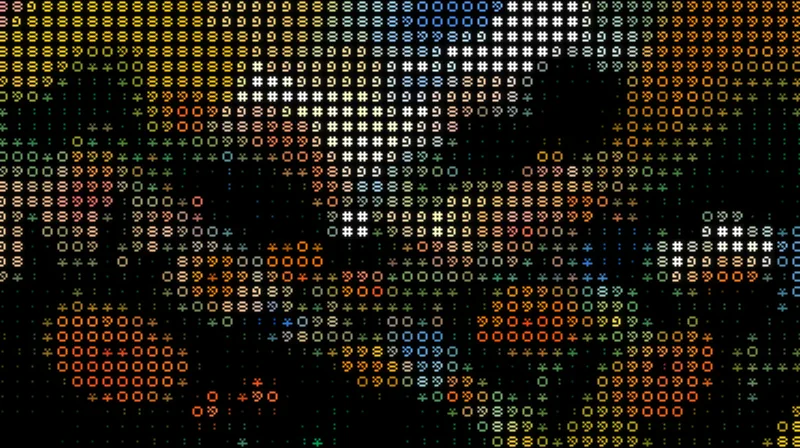
Turns your images into art made of characters, in their original colors or a single ink, with a transparent background.
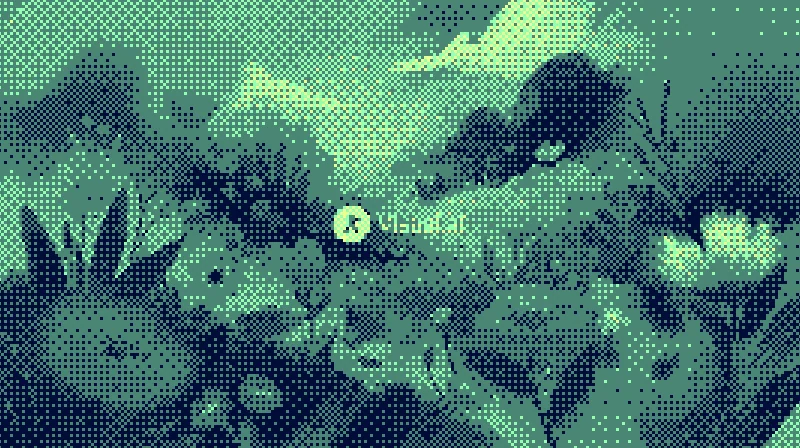
Dithers your images with Bayer matrices or random noise, in the original colors or your own palette.
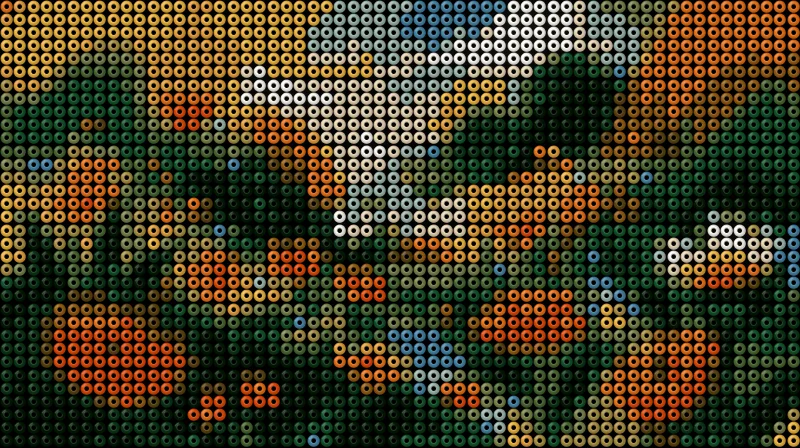
Build hama bead designs from your images: beads with volume, an adjustable hole and a colored pegboard.